Sunday, 3 November 2013

Week_6

FIRE_Using the SuperSpray Particle System

1_From the create/ dropdown menu select particle  system/ SuperSpray
 

2_Draw out in the topview an icon about equal to  the whole grid(check it in the perspective  view). Centre it on x/y/z via the spinners in  the bottom status ribbon.
 

3_As with the other particle effects covered go now to the parameters of the spray - its  basically the same ones.
4_ Spread=15
In viewport display=mesh and percentage of  particles=100%
5_In Particle Generation
Use total=200 try 100 and 300
Set, Speed=0.2, 0.4 or 0.6

In Particle timing
Set Emit Start=-100, Emit Stop=500 and at  present leave the size and variation as shown.  In particle size set 'to Fade' For=30
 

6_In Particle Type
Set standard particle=Facing zoom right in with  a low POV to catch the emission of the facing  particles. It should look as below.Alter various  parameters to examine the effect. 
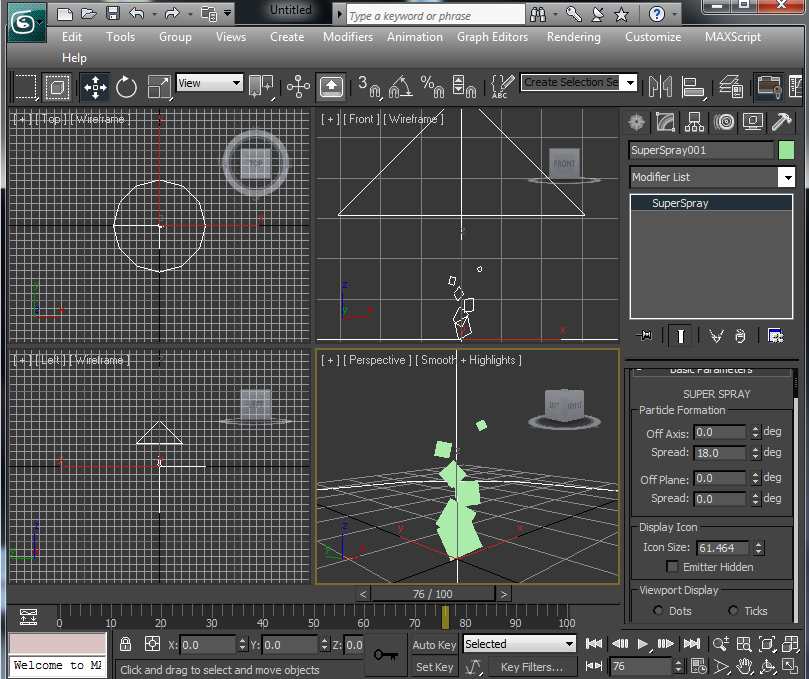


 7_In Particle Rotation and Collision
Set: Spin Time=1
Variation=0.5 gives a bit of difference on each  emission.
Phase=180
Variation=1 give 1 point difference in the way  the spins are over 180%
Set a materials to the particles. As with last  weeks example this is usually done with a  combination of Noise and Gradient mapping.
Open Material Editor, compact version is  sufficient.With the Spray selected apply the 1st  sample slot material and show in viewport.  Squares turn gray.
 

8_Click the box next to diffuse and select a  noise bitmap and you dropdown to the noise  parameter dialogue and the 1st sample shows the  two colours, black being transparent and white is  opaque.
 

9_Click the black swatch and set red=255,  Green=234, blue=0 with hue=39. That should be a  yellow. Click OK


10_Click the white swatch and set red=255,  Green=60, blue=0 with hue=10. That should be a  reddish-yellow. Click OK


The particles should be showing the colours.

Now, as with the 'PArray' and the 'PFsource'  blur the edges via a gradient map.

11_ In the basic parameters click the face map  box. Apply a gradient map in the button to the  right of the opacity and in the gradient  parameter section choose radial. Play the  animation and edge of the radial should be  transparent. On the edges it dies off - that's  the black in the 3 colours within the gradient  parameters. The gray is about the medium colour  and the white is the brightest point of a  particles life. drop the col2 to black.

12_add some noise in the gradient parameter.  Noise=0.7 and alter the size to suit, size=3 or  4 or5 


13_Alter noise threshold: low=0.5 high=0.5 this  will mean the two colours won't blend much.   With animation running alter various parameters  in the gradient parameter dialogue. Whilst  running alter the size in Particle Size in the  modifier panel. size=3 or5. check the flame.size  in the gradient parameter perhaps drop down.  Change various parameters until you get the  required effect.

Apply a lens glow as we did with the PArray.
first apply a material ID in the material  editor

14_With the smoke sample highlighted. Click the  button 8th along from the left in the Material  Editor. Its the material ID button assign  channel_1 ID to the smoke

15_Apply a lens effect via  Render/Environment/Effects
Click the add button and tick the interactive  box. In the Lens effect parameter select glow  and the > button to activate it


 16_With the glow installed examine below and the  two dialogues are
a_Lens Effects Global
b_Glow Elements
Open b_ and click the Options tab and set the  material ID=1, click.


17_In the a_ dialogue vary different settings in  the parameters tab.
Size= 10, Intensity=15

18_In the b_ dialogue vary the different settings  in the parameters tab
First
alter the radial colour to some form of  orange/yellow
Size=30
Intensity=40
Occlusion=30
Each time the render window should show the  effect of the change made.

19_Test  a rendered range say 0-30frames and  save out as smoketest, PNG, 24bit, non alpha  sequential files.
Examine the range via Rendering/RAM player and  playback and it should show a reasonable first attempt  at Flames.

Week_5   Particle Flow system


Using the PFlow particle to simulate smoke
1_Open the file pflow_start.max


2_In the top view zoom in to the jeep and drawout a PF Source logo, change it to circle and set diameter to 3 and the viewport quantity to 100%,  in the modify panel.
 

3_With PF Source selected rotate 180deg in the 'Y' spinner so mission is upwards.

Open the Particle View from Viewport or key 6. This show the particle maintenance elements, with two main panel upper and lower. The upper is called the events panel (the sequence of characteristics to affect the particles are placed in a list ) and the lower is called the depot (where you drag to the upper panel the next required effect)


Examine the two diagrams and check the additions that have been made the complete the smoke effect. As can seen from the operators on the right.  A Delete, a Shape Facing, a force(replaces shape) and a Material Dynamic are added to the original event01 list on the left diagram.  The last operator addition from the depot is the Material Dynamic that actually applies the noise and gradient maps to the final particles.
 

4_Drag each of the operators from the depot panel to the events panel, dropping the face shaping on top of the original shape operator.
 

5_Click on the birth operator in the events. It’s the original creation of the PFlow. A parameter rollout opens to the right.
Set Emit Start=-100, Emit Stop=300, Amount=2000. Scroll with the time slider and the particles are moving to fast. Check that by clicking on the Speed operator.
 

6_Set Speed=6 and variation=1. Scrub time slider. Result is smoke rises more slowly, in a dense column.
 

7_Change the display ticks from ticks to cubes. Click in events the display and the parameter rollout to the right next the Type is the dropdown with display types, select the Geometry type. Next change the size of display.
 

8_Click the shape operator and in the parameter box to the right change the size=0.2, Smaller cubes should be seen emitting from the flow.

 
Add two space warps, One to create an updraft, the other to create a wind from the east.


1_In the create panel click the space warp button, fifth along from create. Click the wind button and in the top view draw out at about 7’oclock a square (size not important) for the space warp. Name it ‘Updraft’
 

2_At about 3’oclock draw out another just off the ground plane. Rotate this -90deg so its arrow is pointed towards the jeep. Name it Eastwind.


3_Tie these space warps in to the particle animation via the Particle View dialogue box. From the depot panel drag up to the event01 list a shape operator. Drop it above display and below rotation. In the force parameter to the right click the ‘by List’ button. A select force space warp dialogue box opens. Use CTRL click to select both.
4_Adjust the space warp settings from the modify panel.
With Eastwind selected:
parameters/force: set strength=0.01, decay=0.025 in the wind section
parameters/force: set turbulence=0.01, frequency=3.0, scale=0.1
With Updraft selected:
parameters/force: set strength=0.0, decay=0.0
in the wind section
parameters/force: set turbulence=0.005, frequency=6.8, scale=0.2 drag time slider to see the smoke drift upwards and to one side.


5_In the Particle View click Birth and in the parameters set amount=250
6_Change the cubes for plane camera facing squares. Drag a Shape Facing operator from the depot and drop it onto the Shape operator. Set the Shape Facing to use the camera as its point of reference. With Shape Facing selected in the parameters section click the button that below ‘Look at camera/object’ set the camera. Move the time slider back and forward and see the faces. In the shape facing parameters set the size to=4.


7_Drag a scale operator from depot to event01. and drop it between the Shape Facing and Force operators.
 

8_Click the Scale operator to highlight it. In the Scale parameters, choose Relative Successive from the Type drop-down list. Make sure Constrain Proportions is turned on, then change the value of Scale Factor X % to 100.2 The factor by which the particles grow doesn’t need to be great. Even two-tenths of a percent increase at each frame adds up quickly.

Create a dynamic material for the particles:
The next step is to create a material that changes over time while the particles change in size.
 

9_Open the Slate Material Editor.  locate Materials/ Standard/ Standard, and drag the Standard material entry into the active View. Double-click the Standard node so you can see its parameters on the Parameter Editor panel to the right. Name the new material Smoke.

10_ Next connect a map to this material. In the Material/Map Browser panel, locate Maps/ Standard/ Particle Age, and drag the Particle Age entry into the active View.
In the active View, wire the Particle Age map output to the Standard map’s Diffuse Color input. You should have the following


11_Double-click the Particle Age map node to display its parameters. Change the 3 default clours to colou1=yellow, colour2=green and colour3=blue. These are arbitary     colour soley for recognicion in the age effect.
12_In the Material/Map Browser panel, scroll so you can see the Sample Slots group. Drag from the output socket of the Smoke material node (at the right), and drop it on an unused sample slot. In the Instance/Copy dialog, choose Instance, then click OK.


13_Add the new material to the particle system:
Minimize the Slate Material Editor and restore Particle View (6).
  14_ Drag a Material Dynamic operator from the depot, and drop it on Event 01 between the Force and Display operators.


 In the Material Dynamic parameters assign the smoke material. Activate the Camera01 viewport, click (Go To End), and then click (Render Production). NoteThe Particle Age effect doesn’t appear in viewports, so when you use this map, you have to render to see the result.


Define the life span of particles:
 
15_Restore Particle View (6). In Particle View, drag a Delete operator from the depot, and drop it on Event 01 between the Birth and Position Icon operators. In the Delete parameters, choose Remove By Particle Age and Change the value of Life Span=350 and the value of Variation=50. The Variation setting introduces a random variation in the life span of particles, so the system doesn’t appear too uniform. Render frame 300 once again.


Next stage is the all important step which is the same maps for smoke or fire using a combination of noise and gradient maps to allude to the turbulence required.
First 3 noise maps are allocated to col1,2 and 3 of the present Particle Age Map. finishing as below. That puts a noise into the red, green and blue setup earlier. FIrst one noise map and its parameters are constructed then  it is copied to col2 of the Particle Age where its parameters are altered then again its copied to col3 of Particle Age.


16_Double-click the Particle Age map node to display its parameters.  Drag a Noise map from the Browser into the Active View and Wire the Noise map to the Color 1 component of the Particle Age map. (top part above)
17_Double-click the Noise node (in an area other than the preview) so you can see its parameters. On the Noise Parameters rollout, choose Fractal as the Noise Type and change the value of Levels to 10.0 (increases the complexity of noise pattern)
18_Change the value of Noise Threshold High to 0.65 and Noise Threshold Low to 0.35.
19_Click the Color #1 color swatch. In the Color Selector, set V=29.0 (a very dark gray; the RGB values change to equal 29.0 as well), and then click OK.Click the Color #2 color swatch. In the Color Selector, set V=86.0 (a moderately dark gray), and then click OK. The smoke in its initial stages will be very dark, nearly black.
 

20_Change the value of Size to 4.0. The noise parameters dialogue box should be as such:


When you copy the map you are mimicking the aging of the particles so Vary the map as particles age:
21_Hold down the Shift key, and in the active View drag the Noise map node to create a clone of the node. Wire the second Noise map to the Color 2 component of the Particle Age map.
22_Double-click the new Noise map node to see its parameters. By the Noise color swatches, click the Swap button. (The col2 of map1=col1 of map2. So swap) and setup a new set of parameters for col2.
Double-click the new Noise map node to see its parameters.
By the Noise color swatches, click the Swap button. Also on the Noise Parameters rollout, change these settings: Noise Threshold High = 0.8 Noise Threshold Low = 0.2,  Size = 5.0. The noise map wired into node 2 of particle age should look as below


23_Hold down the Shift key and drag the second Noise node to make a clone of it. Wire the new, third noise node to the Colour 3 component of the Particle Age map. Again swap the col1 and col2 swatches.
24_ Again alter the parameters for col2. Click the Col2 color swatch. In the Colour Selector, set V=220, and then click OK. Also on the Noise Parameters rollout, change the value of Size to 4.. Again render the last frame. Should be as such:


The next step is to make the particle edges transparent, so they blend together more naturally, and don’t have sharp edges against the terrain or the sky. That is usually done via gradient maps on the opacity map.
Add an Opacity map to hide particle edges:
25_Drag a new Particle Age map from the Browser to the active View. Wire the new Particle Age map to the Opacity component of the Smoke material.


To colour1 of the New Particle Age create a Gradient Map and to the Gradient add a Noise Map to colour2 as below, showing the output of gradient going to input of col1 node on the new Particle Age.


26_In the Gradient parameters set gradient type as radial and in the noise group set to fractal and the others as seen below:


 the opacity pattern appears more natural, but retains the opaque center and transparent edges.
27_Drag a Noise map from the Browser to the active View, as above wire the new Noise node to the Color 2 component of the Gradient map node. Set its parameters as below


28_Drag a second wire from the same Noise map, and wire it to the Color 3 component of the Gradient map.


Decrease opacity as the particles age:
29_Click and Ctrl+click to select both the Noise map and the Gradient map, then Shift+drag to clone both nodes. Wire the new Gradient node to the Color 2 component of the Particle Age map.
30_Clone the Noise/Gradient node pair again, and wire this new combination to the Color 3 component of the Particle Age map.


the combination should look as above. Double-click the Particle Age map node (for Opacity) to see its parameters .Now all three particle ages have a Gradient map with Noise.
31_Double-click the Noise map node connected to the Gradient map that is connected to Color 2.In the Noise Parameters rollout, click the Color #2 color swatch. In the Color Selector, change V=161, and then click OK. The darker color makes particles more transparent in midlife.
32_Double-click the Noise map node connected to the Gradient map that is connected to Color 3. In the Noise Parameters rollout, click the Color #2 color swatch. In the Color Selector, change V=64, and then click OK. The new Color #2 value makes the particles even more transparent as they near the end of their life.
33_Render the last frame and it should be as follows


 -
34_ Add a shadow via the Direct01 light. Select from scene and in the modify panel turn on shadows and render last frame again


Thursday, 24 October 2013

Wk 4 Storyboard Presentations

Week_4 demo

Particle Systems

This week we will look at the Particle Generation abilities within 3dsMax.
First is PArray particle system  which can distribute particles on a geometric object. It can be also used in object explosions (see tutorial files within 3dsMax)
When PArray is used to emit particles using a selected geometric object (the cylinder in the demo) as the emitter pattern for the emission, the object is the distribution object.
Particles can be distributed on the edges, Vertices or Faces of a distribution object.

Applying PArray to a scene

1_Open the emitter1.max file from shared  location. Apply a PArray system from the create/ standard primitive/ drop down to particle systems/ PArray and draw out a PArray at the side of the base, size not important. Use the pick button to select the cylinder.


2_Within the modify panel for the  parray first set the percentage of particles=100%.

3_The next set of variations are all within the ‘Particle generation’ rollout. As shown below .

a_use rate (particles born on each frame. Set at 10, try 50, then drop down to suit),
b_speed (particles per second, stops them flying away, set at 10”/sec, try 1”/sec),
c_variation (different speeds, set at 0% try 60 or 70%),
d_divergence (stops them emitting at right angles to the face, set at 10deg try 50 to 70 degree),
 e_timing (range of life of emitter, emit start set to minus 0, emit stop set to animation range), 
f_life ( alters life span, set at 1 try 2 with variation set to 1, it gives a range of 2 + or – 1, which is 3 or 1, try the difference),
g_life variation (some fade off at different rates, try 1)
Test render and should give a reasonable eruptive flow of particles. Picture shows flow with adaptive use of gravity space warp.


Next stage is to control flow via gravity
4_From the space warp  button below  the create tab. Select the gravity space warp and draw out at the side of the PArray (could draw it anywhere!).
5_Do a spacewarp bind (on the main ribbon below the edit and tools dropdown menus) fronm the PArray to the gravity plane. The effect should be immediate in the direction of the ‘P’ flow .
6_Try the gravity at a 10th or so. Click the gravity square and in modify panel set strength to=0.1 or 0.3
7_You will now see that particles a sometime falling through the floor. A deflector is needed to stop this. A deflector is another space warp. Choose the next from the dropdown after forces. Should be deflectors and choose the POmniFlec because this won’t be budged by particles forces.
8_Draw out a POmniFlec and bit bigger than the floor. Again spacewarp bind from PArray to th POmniFlec. Play the move and particles should be falling before the animation. Set to -3sec and for total length of movie.
9_If some particles continue to fall through then move the deflector down below the floor in the left view.
10_Do a final bit of manoeuvring control  with the bounce and the friction parameters. Drop bounce to about 0.3 and set the friction to about 65%  
The particle flow should look quite good at this point. Add a material to give it a nuclear type glow.
11_Set the particles so you can view clearly when rendered by changing their characteristics in the viewport display on the PArray modify panel as shown below.

Also whilst in the modify panel set the size to not grow but start full size and set the fade to fade for 6 frames. So was grow=0:0:10 and fade=0:0:10, change to grow=0:0:0 and fade=0:0:6 so life fades out after 6 frames.
12_Open the Material editor (compact mode), set 4th sample slot to bright green, 100% self illuminate, face map=on,  name it 'particle_mat', Mouse right click and within the object properties set 'not' to receive or cast shadows.

13_Drop down to the maps R.O. source the opacity slot, click and load gradient and whilst down there set to ‘radial’

14_RENDER and check whether to alter a few things. Perhaps change number of particles via the ‘use rate’ set = 20 and try increasing the size of the particle to=2” or 3” try variation at=50% - RENDER and quite a pleasing effect should be evident.

15_Try out a special lens effect. In the Mat Editor apply a material I.D  (next along from ‘put to library’ button) set to 1

16_From the rendering menu drop down to effects and the Environment and Effects dialogue box opens, select ‘Add’ and select ‘lens effect’. Under Lens Effect Parameters select glow and via the arrow send to right hand box, with interactive clicked.

17_  In the Glow Element Roll Out select  Options tab set the Material ID which is 1 to be ‘on’  
18_In the Lens Effects Global: set the various Parametre values for size (try = 50 the 5), intensity=30, try other. It should render each time because interactive is activated.

19_In the Glow Element rollout set the radial colour to brightest green then also alter the size=5 then1 and the intensity 80 then 40 .At this point you should be able to achieve a particle emission with an effect that you want


Monday, 14 October 2013


Week_3


Next Week_Storyboards

During week 4 (next week's session) I would like each group to give a short and informal presentation which details the groups intentions and progress. You should include the following:

1) As a group you should explain your intentions for delivering the brief and also explain the angle your intend to take in delivering the factorial information surrounding Pearl Harbor.

2) Introduce each group member and tell us what each person is responsible for.(Remember, each group member must complete some kind of modelling AND animation) 

3) Explain how you intend to model and animate the scenes with reference to a completed storyboard.


 Wk_3 Demo. work

Construction of low-polygon count facade from an image
1) The example of the Medieval building was from a 3dsMax tutorial file(2011) under the modeling section. 

2) A very good example can be followed from the following you-tube video
 http://www.youtube.com/watch?v=wr0PSxfs2GU&feature=player_embedded


Wednesday, 9 October 2013

Week_2

This week is a look at some of the basic construction techniques in 3dsMax. Covering the loft, spline construction, extended primitives, modifiers and sub-object modeling.


sec:1
Lofting and it's possibilities.

Lofting
1
Draw out 3 splines, a line, a circle and a star.
So they are laid out side by side in the perspective view.
2
Open compound objects from the create menu dropdown, select the line and the loft button activates so you can select shape, (if you have shape you select a path), click on the circle and it lofts along the path.
 3
F3 to examine path and Path parameters.
Enter25, that is 25% along the path from the start of its creation. A yellow marker. Set path at 50% and get star shape. The path now has a circle base and a star top.
4
Move the shapes to show they are separate from the loft, also sit path outside of the lofted object.

5
Open the skin parameters in modify, open the end cap and examine the effect of the adaptive path steps.

6
Separate the circle, star and line so they are clearly viewed, examine the effect of altering the radius of the circle in the modify panel. Examine also the effect of sub-object manipulation on the vertex level of the star shape as it translates to the lofted object. Examine the spline rescaled.
manipulate loft sub objects.
7
Make an alteration on the loft object. Deselect all, select loft object, open the loft in modifier. Select shape and set star to 100% then move the circle shape up to about 60 to give a semi plant like shape.
adding scale deformation
8
We have our shape and so far the only modification is via the circle, star or line alterations. Another alteration is via the scale deformation. Open deformation and scale down the base by lowering the left hand point a bit. (about 65).
 9
Insert two bezier points along the path and set a curve that goes up from zero on the horizontal axis, to a hill curve at about 30% along to a trough at about 70% along the horizontal axis in the deformation panel. Again in the deformation panel at 0, set the point (mouse right click) to a bezier corner and move the handle so it rises steeply, also drop that left most point to zero (this should give a curve base to the lofted object).


10
With the caps end remove from the loft object the thickness is just a set of plane polygons. Thickness can be added via the shell modifier. Set the inner amount to 0.1. After the shell examine the shape for its stability. Alter the base to be a bit more of a stable base and perhaps scale down the top of the lofted object.
11
Object now has shell and loft check in the loft the shape steps and the path steps, dropping them down to what is acceptable before the shape begins to look bad.
12
Apply a smooth modifier, by default it is off so apply Auto Smooth. Try to get a smoother base by playing around with the threshold to see where the edges begin to smooth (thresshold probably about 65)


Sec:2
Spline manipulation and extended primitives in construction of a bench seat.


Set up unit system (metric/centimeters) and the grid system (right click on snap/home grid/grid spacing=10cm, major lines=10, perspective view grid extends=20)
1_

Keyboard enter a rectangle in perspective view (Pv). Length=100, width=200
2_

Select move and set z=0.5 in Pv. Shift and make a copy about 20cm. Collapse to an editable spline and attach to the original.
3_

In segment level, set the snap grid to vertex and create line from the corner top to corner bottom vertices. Repeat for all corners. Still in segment, shift copy a corner segment to sit just left of centre, Copy that to be just right of centre. Repeat so there are four central support struts.
4_

Apply a sweep modifier. Examine the effect with size reduction. Set to bar and reduce sizes. 
Examine cylinder and drop down radius. Revert to bar profile. 
And base should be as such.

 
5_

In Pv use keyboard creation to create base support for cushions. 
Create a box. L=100, Width=200, Hight=5cm- create and sit on top of the frame.
6_

Create a cushion from the extended primitive section via a chamfer box. Set at length=100, width=100, height=15 and fillet=0.5centimetres
7_

Shift and position to one side .Then Shift click to copy to the other side. Select one of the cushions and isolate and apply a vol. select modifier. This allows info to be passed up and down the stack. 

8_

In the vol. select, set stack selection to vertex and drop down to the gizmo level. Examine the gizmo scaled and moved and with the soft selection ‘on’ and the ‘fall off’ adjusted. With the selection wanted apply a ‘push’ modifier and examine the effect of different push values.
9_

With the required distortion to the cushion delete its vertices at the bottom by applying another vol.select. set at vertex and rotate to see the bottom of the cushion. When the selection suitable apply another modifier.  Apply a modifier ‘DeleteMesh’ and the bottom of the cushion should be removed.

10_

Rotate the cushion to see the top and apply a MeshSelect modifier to override the effect of the stack. 
11_

Add a noise modifier and set the strength to 30,30,30 for x,y,z and decrease the scale to see the various effects. Set to acceptable level. Perhaps strength=5 and scale=20 As seen in the left cushion below.
12_ 

Un-isolate the rest of the bench seat to check the various effects on the manipulated cushion.


Sec:3
Manipulation of the sub object polygon in converting a basic box to a variety of molded object such as a seat to a stool. 


Polygon ModelingDraw out a spline shape for the base and lathe it. Draw out a cylinder as shown at its centre and a chamfered cylinder again as shown, centred and sat as shown. 
 I will drop the file on the shared drive if needed. Look at _stool base.max

1_Open the 3dsmax file: bar_stool base.max
 

2_
Draw out a box in the top view(Tv). Set the segment to 4x4x4. Convert to an editable polygon.
 

3_
Delete the polygons on the  -x side and add a symmetry modifier. Weld seam should be ‘on’.
 

4_
In poly sub object mode ‘show end result’=on and add a turbo smooth modifier and check different iterations.
 

5_
Drop down to the polygon sub object level and with ‘show end result’=off select the two inside top polygons and extrude downwards. Check if extra polygons have been created and delete them. Turn on ’show end result’ and check.


6_
Now in top view it is time to round out the seat, using the stool base as a guide. This is clumsy but can be effective. Change to edge mode and begin to move all perimeter edges inward, Using the underlying stool base as a circular guide. This is the methods big draw-back. But working carefully can give a fair approximation of the base. Edge not vertex as shown below.


7_
Taper the bottom of the seat after deleting the underneath polygons. Show end result =off examine the base and select the polygons and delete.
Remember to keep using the show end result 'on' and 'off'.
 

8_
Select the bottom edge and loop to select all the edges at the bottom of the seat. Change the reference coordinate system to world and the use coordinate tranform  centre to scale down in the XY axis  


9_

Clean up the vertices at the top edge. Use the various constraints necessary in show end result ‘off’


10_
Add a horizontal loop scale and shape and collect top polygons and tilt via rotate to give the slope to the stool